Quick answer
To convert SVG to PNG, choose an output width, since a vector has no fixed resolution, and rasterize it once at that size. Image Edtr does this in your browser: it checks the SVG for scripts and external references, then exports PNG, JPEG, or WebP up to 16,384 px wide, with height following the aspect ratio.
SVG is the format of choice for logos, icons, and diagrams on the web, but plenty of places won’t take one: social networks, email clients, office documents, app stores, and many upload forms want a PNG or JPEG. Converting is easy. Converting well means choosing the right size, the right format, and knowing what an SVG file can contain that won’t survive the trip.
Vector vs raster: what changes when you convert
An SVG is a vector image. It’s a text file that describes shapes: a circle at this position with this radius, a path through these points, a fill of #3a6ea5. Your browser draws those instructions fresh at whatever size the image is displayed, so edges stay crisp at 16 px or 1,600 px.
PNG, JPEG, and WebP are raster images: a fixed grid of colored pixels. A 512 × 512 px PNG has exactly 262,144 pixels and no more. Shown larger than that, the browser has to invent pixels between the real ones, which looks soft or blocky.
| Vector (SVG) | Raster (PNG, JPEG, WebP) | |
|---|---|---|
| Stores | Shapes, paths, text, and colors as instructions | A fixed grid of pixels |
| Scaling up | Stays sharp at any size | Gets soft or blocky past its native size |
| Best for | Logos, icons, charts, illustrations with flat colors | Photos and anything with complex texture |
| File size depends on | Number and complexity of shapes | Pixel dimensions and compression |
| Supported by | Browsers and design tools | Nearly everything, including email, documents, and social uploads |
So converting SVG to PNG is a one-way trip: you trade “sharp at any size” for “opens anywhere.” Keep the SVG as your master file and export rasters from it as needed. The image formats guide covers when each raster format is the better fit.
How to convert SVG to PNG in Image Edtr
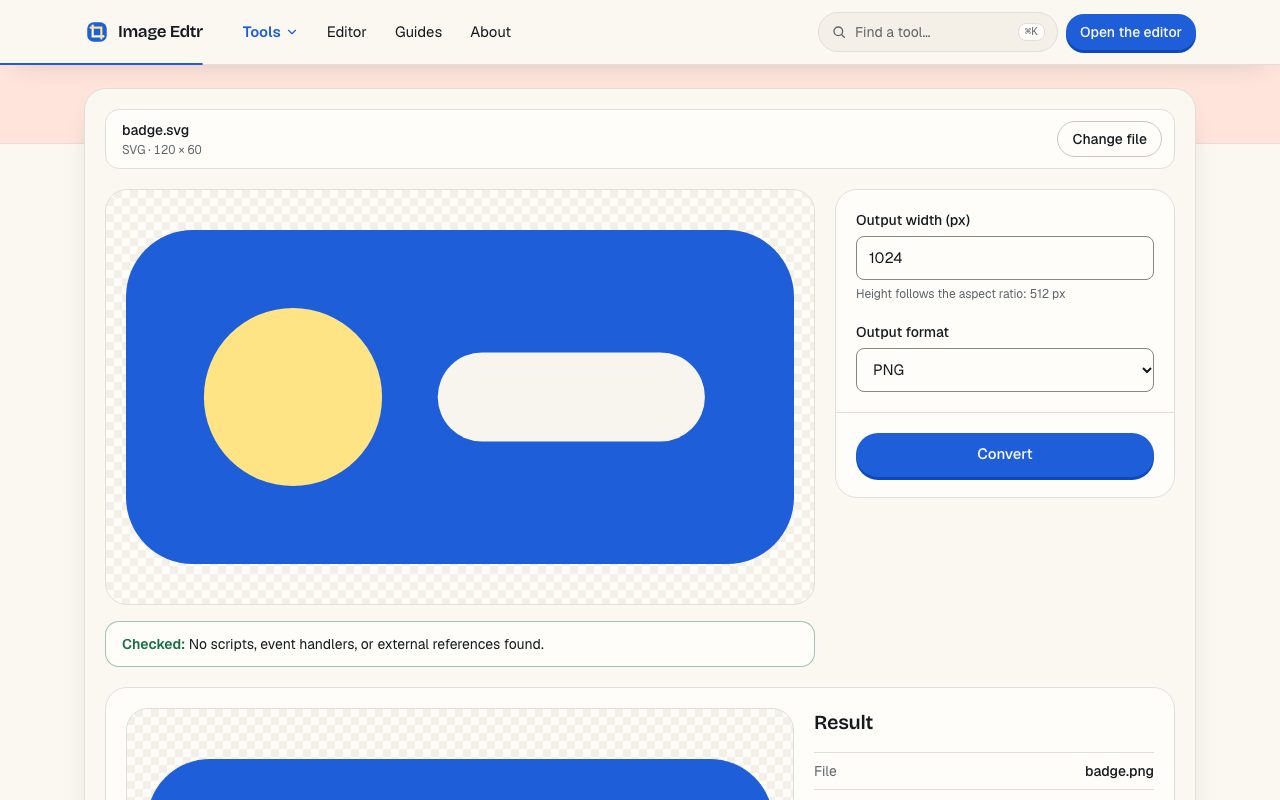
Choose an SVG file
Drop an
.svgfile up to 5 MB onto the page. It’s read and checked in your browser; a Checked message confirms no scripts, event handlers, or external references were found.Set the output width
Enter the width in pixels, up to 16,384. The height is calculated from the SVG’s aspect ratio and shown under the field.
Pick a format
Choose PNG for transparency and sharp edges, JPEG for the widest compatibility (with a background color for transparent areas), or WebP for smaller files on the web.
Convert and download
Select Convert, check the preview, then download the image.
What SVG resolution should you export?
An SVG has a size written into it, through its width, height, and viewBox attributes, but that’s a suggestion, not a limit. When you export, you’re deciding how many pixels the result gets. Pick based on where the image will be shown.
On the web, sizes in CSS are measured in CSS pixels, but most phones and many laptops have screens with two or three device pixels per CSS pixel. A logo displayed 200 CSS px wide is drawn with 400 device pixels on a 2× screen and 600 on a 3× screen. Export only 200 px and it will look slightly soft on those screens.
| Use | Displayed at | Export width |
|---|---|---|
| Web logo or icon | 200 CSS px | 400 px for 2× screens; 600 px for 3× |
| Social media profile image | Platform’s recommended size | At least that size; larger is fine since platforms resize |
| Slide or document | Full slide width | 1,920 px or more for a 16:9 slide |
| Physical size in inches | Inches × 300 for a typical 300 ppi print | |
| Favicon source | Up to 512 px | 512 px or larger, then use the favicon generator |
For the web, you can export several widths and let the browser choose with srcset, for example <img src="logo-400.png" srcset="logo-400.png 1x, logo-600.png 1.5x, logo-800.png 2x" alt="…">. MDN’s responsive images guide explains how browsers pick. If the destination accepts SVG, though, just use the SVG; it’s sharp at every density with one file.
Image Edtr suggests a starting width when you open a file: the SVG’s own width if it’s at least 512 px, otherwise 1,024 px. Very large exports are also limited to about 40 megapixels in total, because browsers can run out of canvas memory beyond that, especially on phones.
SVG to JPG, PNG, or WebP: which output format?
- PNG is lossless and keeps transparency. It’s the right default for logos, icons, and diagrams, where flat colors and sharp edges compress well.
- JPEG has no transparency, so transparent areas are filled with a background color you choose (white by default). Use it when a destination accepts only JPEG, or for SVG illustrations with gradients and photographic detail.
- WebP supports transparency and usually produces smaller files than PNG for the same image. It’s a good choice for websites; check that the destination accepts it, since some upload forms and older software don’t.
JPEG’s compression creates faint smudges, called artifacts, around hard edges and text. That’s why an SVG logo converted to JPEG can look slightly dirty next to the same logo as PNG. If you must use JPEG, a higher quality setting reduces this. Need to convert the result again later? The convert tool handles raster to raster.
Why was my SVG rejected?
SVG looks like an image, but it’s really a document format, closely related to HTML. It can contain scripts, links to other files, embedded web pages, and styles loaded from the internet. That flexibility is powerful in a browser and a liability in a converter. Before drawing anything, Image Edtr scans the file and refuses it if it contains any of the following:
| Content | Example | Why it’s rejected |
|---|---|---|
| Scripts | <script> elements | Code that could run when the file is opened |
| Event handlers | onload=, onclick=, and other on… attributes | Code attached to events |
| Embedded HTML | <foreignObject> | Embeds a web page inside the image |
| Frames and media | <iframe>, <embed>, <object>, <audio>, <video> | Load other documents or media |
| Script URLs | javascript: links | Run code when followed |
| Style imports | @import in CSS | Fetch stylesheets from elsewhere |
| Entity declarations | <!ENTITY …> | Can be used to expand or pull in content unexpectedly |
| External references | Any href or url() that isn’t #something or an inline PNG, JPEG, GIF, or WebP data: image | Point at files or URLs outside the SVG |
References to parts of the same file, such as url(#gradient) or href="#icon", are fine. So are raster images embedded directly in the SVG as data:image/png;base64,… and the equivalent for JPEG, GIF, or WebP. Comments are ignored during the check.
After the check, the SVG is drawn through the browser’s image pipeline, the same way an <img> tag displays one. In that mode browsers never run scripts and never fetch external resources, as described in MDN’s page on the image element. So why reject files at all? Two reasons. First, defense in depth: the check and the sandbox protect against different mistakes. Second, honesty about the result: an SVG that links to an external image or font would convert “successfully” with pieces silently missing. Rejecting it tells you up front.
Other ways to export SVG as an image, and when to use them
If you made the SVG yourself, your design tool can usually export PNG directly, and that’s often the best route: it uses the same fonts and effects you designed with. A browser-based converter earns its place in the other cases, such as when someone sends you an SVG and you don’t have the app it came from, when you’re on a borrowed or locked-down computer, or when you want a quick export at an exact pixel width without opening a project.
Taking a screenshot of an SVG on screen is the option to avoid. A screenshot captures only the pixels your display happened to draw, at whatever size the SVG was shown, often with a background behind it. Converting renders the vector fresh at the width you ask for, with real transparency.
Whichever route you take, look at the viewBox attribute in the SVG’s opening tag. It defines the drawing’s coordinate system and its aspect ratio, for example viewBox="0 0 240 80" for a wordmark three times wider than it is tall. If the artwork looks off-center or padded after converting, the viewBox usually includes empty space around it, and fixing the artboard at the source is cleaner than cropping every export.
Why do fonts look different after converting?
Text in an SVG is often still live text that names a font, such as font-family="Inter". When the SVG is drawn as an image, web fonts it references aren’t loaded, so the browser uses whatever matching font is installed on your device, or a fallback. The result can have different letter shapes, widths, and line breaks.
The reliable fix is to convert text to outlines (paths) in your design tool before exporting the SVG. The letters become ordinary shapes and render identically everywhere. Keep a copy with live text for future edits.
Other things that can change during conversion
- Missing size. An SVG sized only in percentages with no
viewBoxhas no real dimensions. Image Edtr falls back to 300 × 150, the browser default, so add aviewBoxfor a correct aspect ratio. - Animation. SVG animations aren’t carried into a still image; you get a single frame.
- Transparency in JPEG. Transparent areas become your chosen background color, since JPEG can’t store transparency.
- Filters and blend modes. Complex SVG filter effects are rendered by your browser, so they can differ slightly between browsers. Check the preview before downloading.
Like every Image Edtr tool, conversion happens on your device. The SVG isn’t uploaded, which matters for unreleased logos and client artwork. The MDN SVG reference is a good place to learn more about what the format can hold.
Frequently asked questions
Can I convert SVG to PNG with a transparent background?
Yes. Choose PNG or WebP and any area of the SVG without a fill stays transparent in the output. JPEG can’t store transparency, so if you pick it, transparent areas are filled with the background color you set, which is white unless you change it.
What’s the largest PNG I can make from an SVG?
Up to 16,384 px wide, with the height following the SVG’s aspect ratio. The total image also has to stay within about 40 megapixels, because browsers, especially on phones, can run out of memory for very large canvases. For most uses a far smaller size is enough.
Does converting SVG to PNG lose quality?
At the size you export, no: PNG is lossless and the shapes are drawn fresh at that resolution. What you lose is scalability. Enlarging the PNG later will look soft, so export at the largest size you’ll need and keep the SVG as the master.
Can I convert several SVG files at once?
The SVG to PNG tool converts one file at a time, so you can check each preview and set its width. For a handful of icons, select Change file after each download and repeat. The output format you picked stays selected, and a starting width is suggested again for each new file.
My SVG has an embedded photo. Will it convert?
Yes, if the photo is embedded inline as a data:image/png, jpeg, gif, or webp URL. If the SVG links to the photo as a separate file or web address, it’s rejected as an external reference. Re-export the SVG with images embedded and it will pass.
Is it safe to open an SVG I downloaded from the internet?
In this tool, yes. The file is scanned for scripts, event handlers, embedded HTML, and external references, and anything with them is refused. Files that pass are drawn through the browser’s image pipeline, where scripts don’t run and external resources aren’t loaded. Nothing is uploaded.
Why is my converted image a different shape than I expected?
The height is calculated from the SVG’s own aspect ratio, taken from its viewBox or its width and height. If the file has extra empty space inside its canvas, that space is part of the image. Trim the artboard in your design tool, or crop the PNG afterward.